
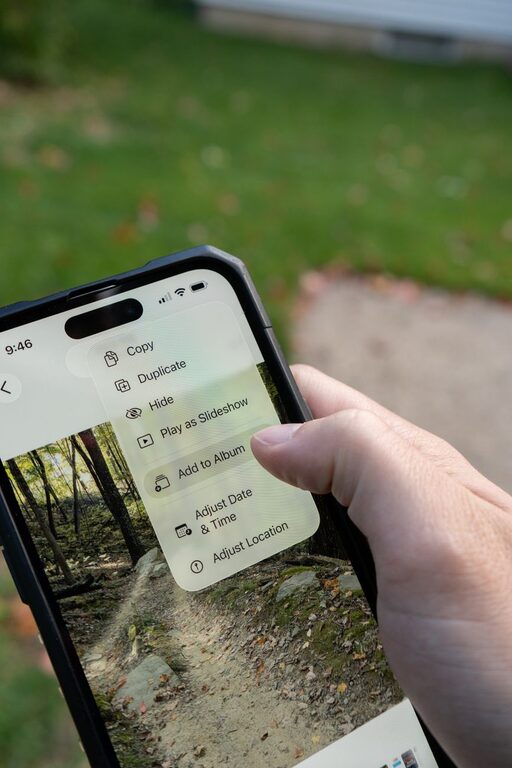
A smartphone makes it easy to capture photos wherever you go. Over time, however, thousands of images can make your photo library difficult to search and manage. Screenshots, duplicate pictures, downloaded images, and blurry shots may quickly fill your storage.
The good news is that you do not need a complicated system. With a few regular habits and the built-in tools on your phone, you can create a photo library that is easier to browse, search, and protect.
Start With a Quick Cleanup
Before creating albums or changing settings, remove the images you no longer need. A short cleanup session can make the rest of the organizing process much easier.
Delete Unwanted Photos
Begin by looking for common types of clutter:
– Blurry or accidental photos
– Duplicate images
– Screenshots you no longer need
– Photos of receipts or notes that have already been saved elsewhere
– Old memes, downloaded pictures, or social media images
– Several nearly identical pictures from the same moment
Many photo apps group similar images or offer a tool for finding duplicates. Review these suggestions carefully before deleting anything. Keep the best version of a photo and remove the rest.
Check the Recently Deleted Folder
Deleted photos often remain in a temporary folder for several weeks. This can continue using storage space. After confirming that you do not need the images, empty the folder.
If you are unsure about deleting something, leave it there for a while. You can return to it later when you feel more confident.
Use Albums for Major Categories
Albums are useful for grouping photos by purpose or event. They can help you find important pictures without scrolling through your entire library.
Create albums that match the way you naturally look for photos. Examples include:
– Family and friends
– Trips and vacations
– Home projects
– Pets
– Recipes
– Work or school
– Important documents
– Favorite photos
Try not to create too many albums. If every small event has its own album, the system may become difficult to maintain. Start with broad categories and add more only when they provide clear value.
Organize by Event When Helpful
Event-based albums work well for birthdays, weddings, holidays, concerts, and vacations. Use a simple naming style, such as:
– 2026 Spring Trip
– Jordan Birthday
– Lake Weekend
– Home Renovation
Including the year can make older events easier to locate later. Consistent album names also help when your collection grows.
Take Advantage of Search Tools
Modern photo apps can often recognize dates, places, people, objects, and text. Search is one of the fastest ways to find an image, even when it is not stored in a specific album.
Try searching for terms such as:
– Beach
– Dog
– Sunset
– Birthday
– Screenshot
– Receipt
– New York
– January 2025
Search results may not be perfect, but they can save considerable time. If you frequently need certain photos, add them to a favorite collection or a dedicated album after finding them.
Mark Important Photos as Favorites
Use the favorite feature for images you want to access often. Favorites are helpful for:
– Profile pictures
– Family portraits
– Travel highlights
– Photos you plan to print
– Images you want to share regularly
– Pictures used for creative projects
Favorites should be a small, focused collection rather than a second copy of your entire library. Review them occasionally and remove images that are no longer especially useful.
Separate Personal Photos From Screenshots
Screenshots can quickly overwhelm a photo library. They may include temporary information, online orders, instructions, or messages that you only needed for a short time.
Set aside a few minutes each week to review screenshots. Delete anything that is no longer useful and move important information to a more suitable place, such as a notes app or a document folder.
You can also create a screenshot album if you regularly need to keep them. Some phones automatically place screenshots in their own folder, making this cleanup easier.
Add Descriptions to Important Images
Some photo apps allow you to add captions, descriptions, or notes. This feature is useful for photos that may be difficult to identify later.
For example, you might add details such as:
– The names of people in a group photo
– The location of a special event
– The model number shown in a product photo
– The date of a home repair
– The reason a document image was saved
You do not need to caption every picture. Focus on images with information that may be valuable in the future.
Review Photo Settings
Your camera and photo app settings affect how quickly your library grows. Review the following options:
Image Quality
Higher-quality images usually require more storage. Use the quality level that suits your needs. If you mainly view photos on your phone or share them online, the highest available setting may not always be necessary.
Automatic Downloads
Messaging and social media apps may automatically save received images to your photo library. Turn off automatic saving if it creates clutter, or review those folders regularly.
Live Photos and Similar Features
Motion photos can be enjoyable, but they use more storage than standard images. Keep them for special moments and consider using regular photos when motion is not important.
Back Up Your Library
A photo backup protects your memories if your phone is lost, damaged, or replaced. Choose a trusted cloud photo service, a computer, an external storage device, or a combination of methods.
Check That Backup Is Complete
Do not assume that backup is working simply because it is enabled. Open the service occasionally and confirm that recent photos appear there.
Pay attention to:
– The date of the latest uploaded photo
– Whether videos are included
– Available storage space
– Whether the service is connected to the correct account
– Whether the backup requires Wi-Fi or charging
A second copy is especially useful for photos that are difficult or impossible to replace. For the most important images, consider keeping both a cloud copy and a copy on another device.
Create a Simple Maintenance Routine
Organizing photos is easier when you handle small tasks regularly instead of waiting for a large backlog.
Weekly Tasks
Set aside five to ten minutes to:
– Delete obvious mistakes
– Review screenshots
– Remove duplicate images
– Add recent events to albums
– Confirm that new photos are backing up
Monthly Tasks
Once a month, you can:
– Review your largest albums
– Remove outdated favorites
– Check available phone storage
– Organize photos from recent trips or events
– Confirm that older photos remain accessible
A calendar reminder can help turn these tasks into a routine.
Keep Your System Simple
The best organization method is one you will continue using. Avoid building a system that requires detailed labels for every photo or dozens of complicated folders.
A practical approach might include:
- Delete unwanted images each week.
- Use albums for major events and categories.
- Mark only the best or most useful photos as favorites.
- Use search to find everything else.
- Back up your library automatically.
- Review storage and backup settings once a month.
Your photo library does not need to be perfect. It only needs to be clear enough for you to find what matters when you need it. With a few simple habits, your smartphone can become a convenient, well-organized archive instead of a crowded camera roll.